User Help System
Search for Trades and Export Results
Search for trades by selecting filters from the drop-down and calendar menus and free-form fields. The mandatory filters (marked with *) are:
- Firm Type
- Firm
- Multi Leg Reporting Type
- Start Time
Select the Expand/Collapse icon to display filter criteria and Advanced Search to display additional search fields.

Search Trades
- To search for trades
- Select an option from the drop-down menus for Firm Type (Trading Firm or Broker).
- Select an option from the drop-down menus for Firm. Select multiple firms by using the drop-down menu again and selecting another firm. Remove a firm by selecting its respective x.
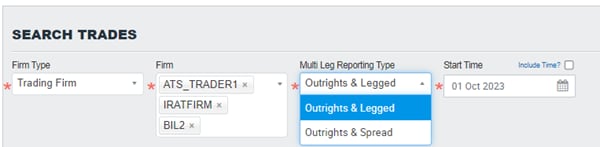
Note: The system displays only Firms to which you are permissioned.
- Select an option from the drop-down menus for Multi Leg Reporting Type to define how you want to receive your spreads: Outrights & Legged (default) or Outrights and Spread.
- Select Start Time (date and time):
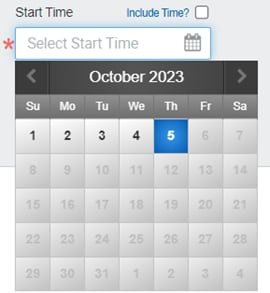
- To select a date (without time):
- Uncheck the Include Time box (if necessary).
- Select the Calendar icon and select a date. (You may select from 31 days prior to the current date; other dates are gray).
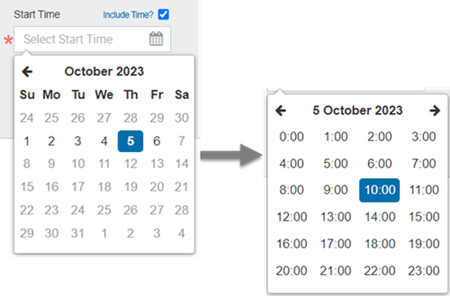
- To select a date (with time):
- Check the Include time box.
- Select the Calendar icon and select a date; then select a time (shown in UTC time zone).
- To select a date (without time):
- Optional: provide advanced filter criteria:
- Select Show Advanced Search to display these additional fields.
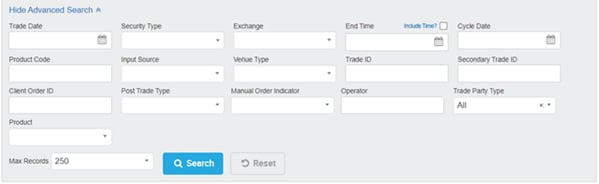
- Select an option from the drop-down menu for Security Type. You may select multiple securities by using the drop-down menu and selecting another security. You may remove a security by selecting its respective x. If you select OPT for Options, the Undly Instrument Type field appears; select the underlying instrument.
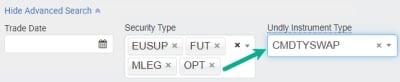
Note: An underlying security is the security on which a derivative derives its value.
- Use the calendar icons for the fields Trade Date, End Time, and Cycle Date.
- Use the drop-down menu for Exchange. You may enter 'XXXX' for for 'Off-Exchange, Bilateral trades'.
- Use the drop-down menus for Input Source, Venue Type, Post Trade Type, Manual Order Indicator, Trade Party Type and Product.
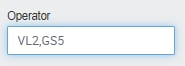
- Enter data as desired for the free-form text fields Product Code, Trade ID, Secondary Trade ID, Client Order ID and Operator. (Note: Operator field can have multiple entries; separate each with a comma).
- Select Show Advanced Search to display these additional fields.
- Select Search.
- Navigate the search result as needed.
Note: Results appear in batches (per selected Max Records field--250, 500, 750, or 1000; select Load Next Batch if needed. Use the horizontal scroll feature (below all rows) to view all columns and vertical scroll feature to view all rows, as needed.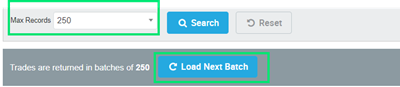
Note: The Transaction Time is shown in CDT time zone.
Note: Save this query to Profiles so that you may quickly use the parameters in future searches.
For detailed definition of each column, see Search Results Data. Also, hover over the column headings to see a Tool Tip description.

Scroll to bottom of the screen to see navigation tools:

- To view trade details
Select the eye icon in the first column for the trade that you want. A window appears showing trade detail. You may select tabs: Details (readable layout), Simplified (formatted layout), FIXML (technical code) or Fees (broker firm fees). Select OK to close the window.
Details tab:

Simplified tab:

FIXML tab:

Fees tab:

- To further filter the resulting search list

- To filter based on column content: select inside the box with magnifying glass and enter matching text; select the X to remove the matching text.
- To sort the list: select the column heading to sort in ascending or descending order.
- To filter the Trade Date and Transaction Time (CDT): select the From or To (beneath the Trade Date Column) and select a date; select the X to remove the date.
- To select/de-select columns of search result
Use the Select Columns feature to check or uncheck boxes of the column names that you want in the resulting search. See Search Results Data for column definitions.

Export Search Results
There are several ways to export and copy the resulting list data.
- Copy to clipboard (you may then paste data into other applications)
- Download to Excel
- To export search results
Select the appropriate icon:

The appropriate download links appear:


