User Help System
Messaging Stats
The Messaging Stats functionality is used to search for Excessive Messaging Threshold (EMT) and Messaging Efficiency Program (MEP) statistics as well as related monthly surcharges. The EMT, while part of the MEP, has different application parameters and is measured at the Globex Firm ID and iLink Session ID levels. Please refer to the MEP online document for specific EMT details.
- To view EMT messaging statistics:
- Select the Messaging Stats 3 tab.
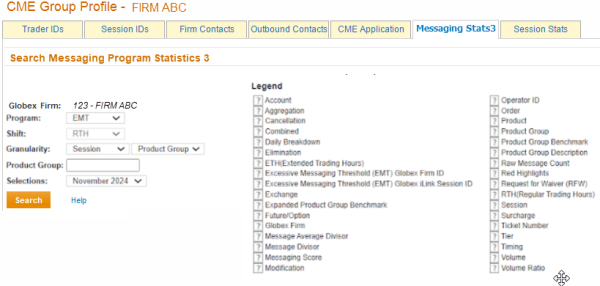
- From the Search Messaging Program Statistics 3 page, enter or select the <search criteria>.
- From the Program option, select EMT.
- From the Granularity option, choose either Firm or Session and either Product Group or Product.
- The EMT is measured at the Product Group.
- Selecting the Product provides the instruments for which a client submitted messages.
- From the Selections option, choose the desired date range.
- Select Search.
Results appear in a list: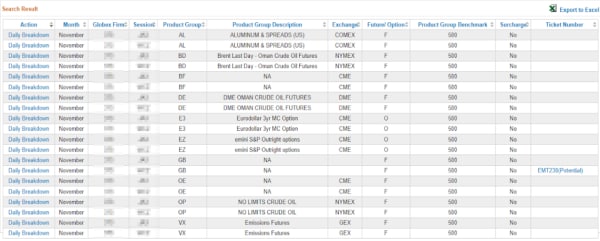
Note: Hovering the mouse pointer over the  symbol, on the Search Messaging Program Statistics screen, displays descriptions of results data columns.
- Select the Daily Breakdown links to view additional details.
- To view MEP messaging statistics:
- Select the Messaging Stats 3 tab.
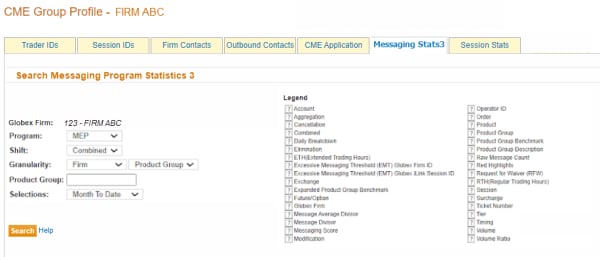
- From the Search Messaging Program Statistics 3 page, enter or select the <search criteria>.
- From the Program option, select MEP.
- From the Shift option, select RTH, ETH, or Combined.
- From the Granularity option, select Firm, Session, Operator ID, or Account.
- If desired, from the Product Group option, enter a specific Product Group to view or leave blank, which will result in all Product Groups appearing.
- From the Selections option, enter a Single Day, Month to Date, Custom, or a specific month to view.
- Select Search.
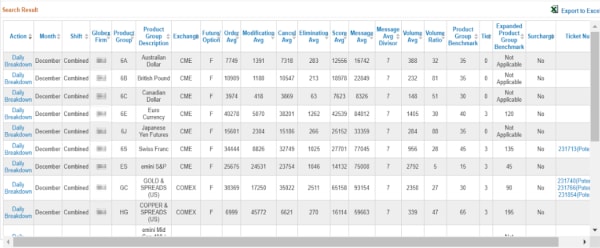
Results appear in a list: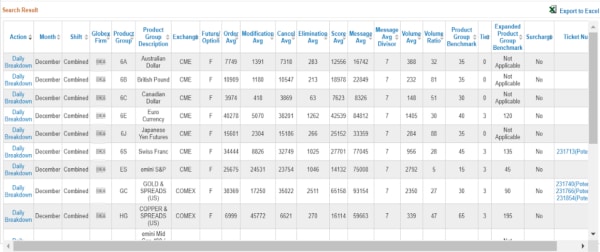
Note: Moving the mouse pointer over the symbol, on the Search Messaging Program Statistics screen, displays descriptions of results data columns.
- Select the Daily Breakdown link to view additional details.
- To view messaging monthly surcharges:
- Select the Messaging Stats 3 tab.
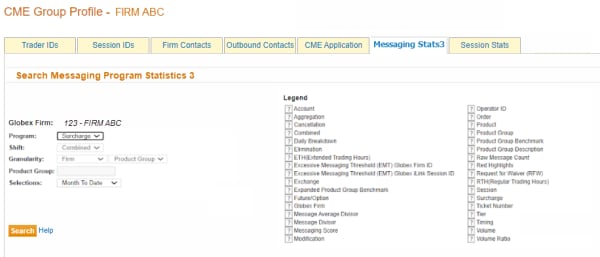
- From the Search Messaging Program Statistics 3 page, enter or select the <search criteria>.
- From the Program option, select Surcharge.
- From the Selections option, select a specific month.
- Select Search.
Results appear in a list: